
Documentation
Budget Setup
Adding New Budget Item
Adding a new budget item is done via Budget Setup.
To add a new budget item, hit and enter a budget item name, amount and start date.
Start Date determines when a budget item will become active and show up in Budget Allocation. Budget item becomes active in the month in which it starts.
IMPORTANT: Whenever we create a new budget item, we must also create an identically named Category.
Changing Budget Item Amount
From time to time our expenses will change. To keep track of these changes and to reflect them in Budget Allocation, we can adjust our budget items to reflect when and by how much they change.
Let's go back to our simple budget example and see how we can adjust it.
We will use GAS as an example. We can see that current monthly budget for gas (budget item amount) is $200 and it became active on 5/1/2025.
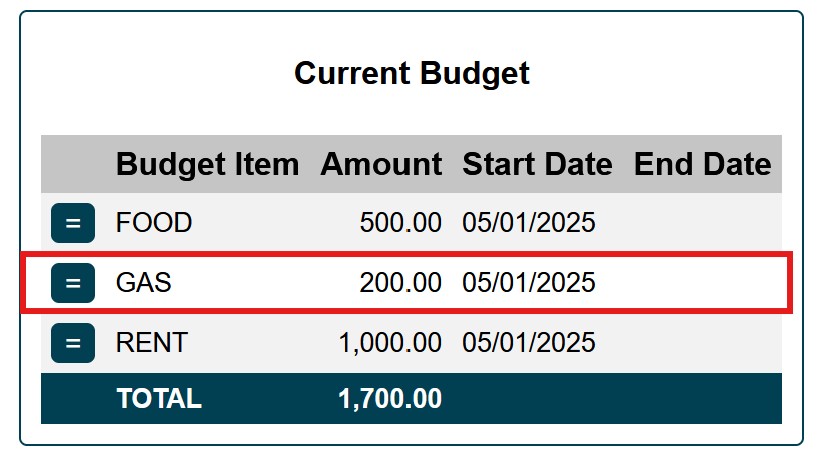
Let's say that starting in June we want to increase our gas expense by $50 from the current $200 to $250.
The first step is to set an End Date for the currently active budget item (GAS in our example).
To do this we will press the edit button and set the End Date to 5/31/2025, which is the end of the current month.
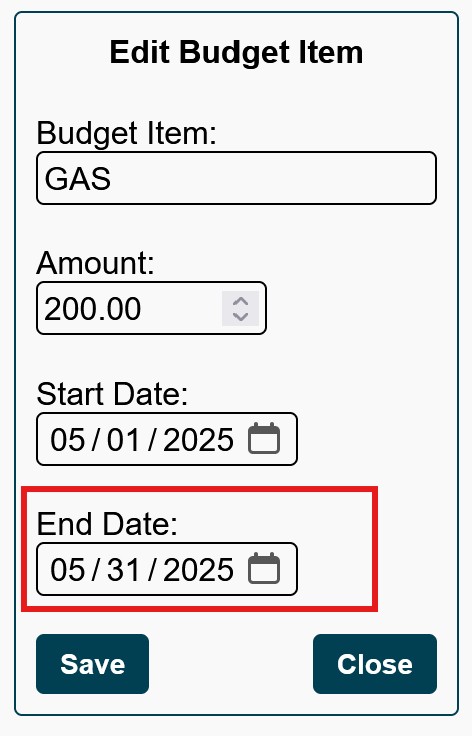
End date can be any date we choose but the budget item will be active for the whole month in which it ends. In other words, if we would've set the end date to 5/20/2025, this budget item would remain active until the end of May.
Our next step is to make GAS be $250 starting in June. To do this we will create a new budget item and name it the same.
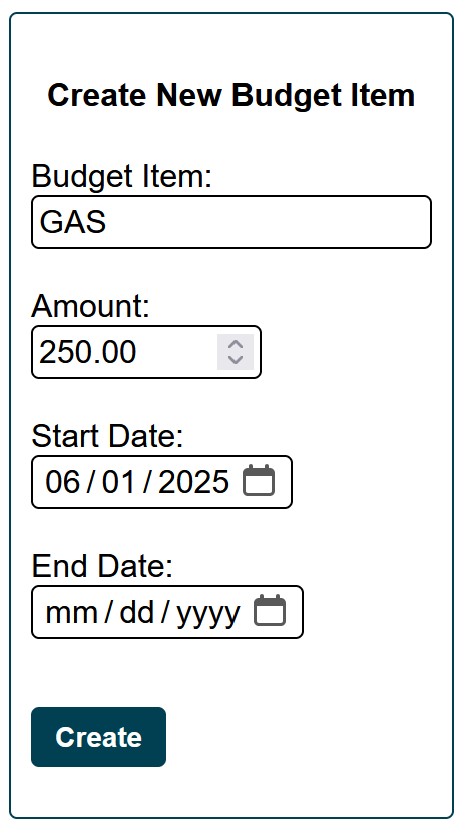
In Budget Setup () we will press button and create another budget item named GAS. The only difference is we will set amount to $250 and starting date to 6/1/2025. End date will be left blank.
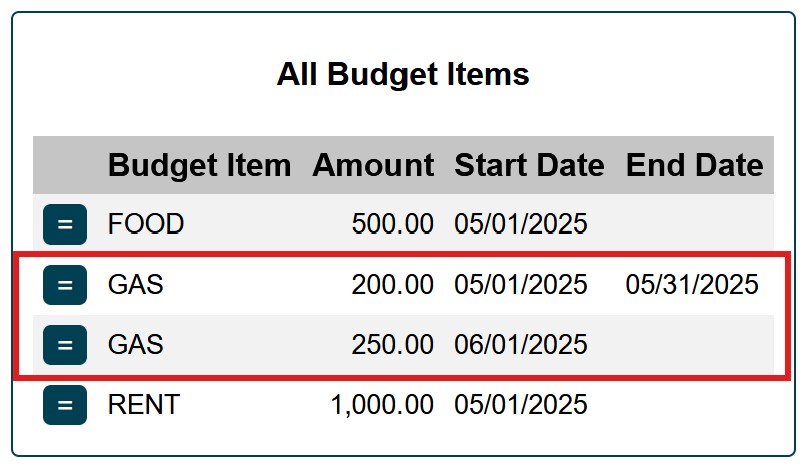
Now if we look at all budget items, we will see how our gas expense has changed over time. To see all budget items go back to Budget Setup and press
Since we already have an identically named category, we do not need to create one.
We can see past, current, and future budget allocations in Budget Allocation Report (). This allows us to see the amounts for budget items in any given month and how much was allocated for each of these items. It also allows us to see what to expect in future months if we know when and what expenses are expected to change.
Adding New Budget Item
Adding a new budget item is done via Budget Setup.
To add a new budget item, hit and enter a budget item name, amount and start date.
Start Date determines when a budget item will become active and show up in Budget Allocation. Budget item becomes active in the month in which it starts.
IMPORTANT: Whenever we create a new budget item, we must also create an identically named Category.
Changing Budget Item Amount
From time to time our expenses will change. To keep track of these changes and to reflect them in Budget Allocation, we can adjust our budget items to reflect when and by how much they change.
Let's go back to our simple budget example and see how we can adjust it.
We will use GAS as an example. We can see that current monthly budget for gas (budget item amount) is $200 and it became active on 5/1/2025.
Let's say that starting in June we want to increase our gas expense by $50 from the current $200 to $250.
The first step is to set an End Date for the currently active budget item (GAS in our example).
To do this we will press the edit button and set the End Date to 5/31/2025, which is the end of the current month.
End date can be any date we choose but the budget item will be active for the whole month in which it ends. In other words, if we would've set the end date to 5/20/2025, this budget item would remain active until the end of May.
Our next step is to make GAS be $250 starting in June. To do this we will create a new budget item and name it the same.
In Budget Setup () we will press button and create another budget item named GAS. The only difference is we will set amount to $250 and starting date to 6/1/2025. End date will be left blank.
Now if we look at all budget items, we will see how our gas expense has changed over time. To see all budget items go back to Budget Setup and press
Since we already have an identically named category, we do not need to create one.
We can see past, current, and future budget allocations in Budget Allocation Report (). This allows us to see the amounts for budget items in any given month and how much was allocated for each of these items. It also allows us to see what to expect in future months if we know when and what expenses are expected to change.