
Documentation
View/Edit Transactions
Description
View/Edit Transactions feature lets you search for and modify transactions.
Modifying Transactions
To modify a transaction, go to:
Use button next to a transaction you want to modify.
For detailed explanations of transaction types, see Transaction Types.
For transfer and split type transactions (CATXFER-OUT/IN and SPLIT-OUT/IN), account CATXFER must be used. CATXFER is a built-in system account that is used to handle transfers between categories. This account does not show up on any reports.
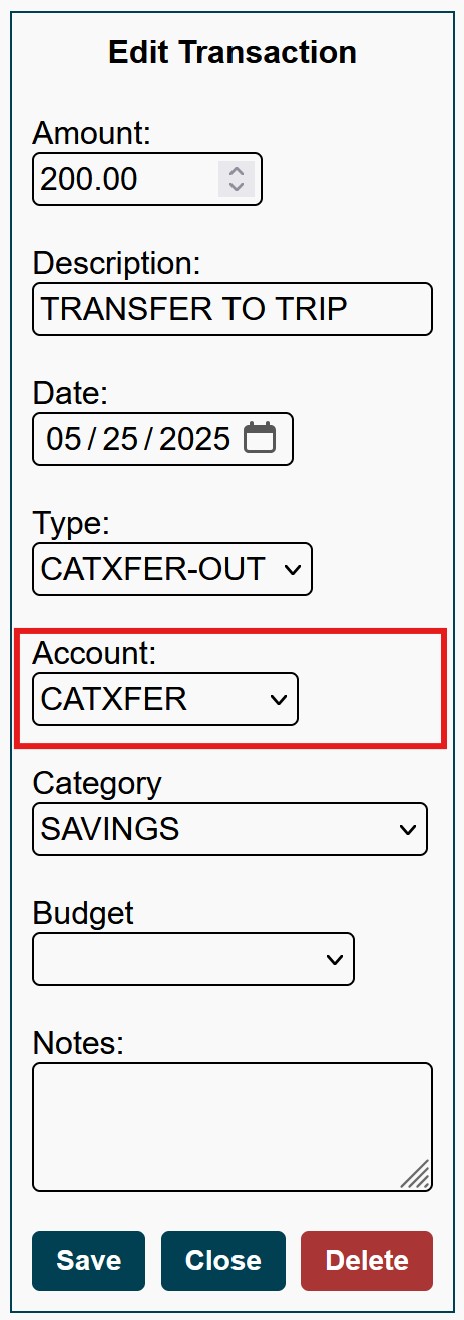
When modifying transfer or split type transactions, note that these transactions have 2 entries: incoming and outgoing.
For example, if we do a category transfer (transfer funds from one category to another), there will be 2 transactions created. One transaction will be moving funds OUT of a category and another transaction will be moving funds INTO a category.
If we need to edit this type of transaction, such as modifying an amount, we must update both the incoming and outgoing transactions.
Description
View/Edit Transactions feature lets you search for and modify transactions.
Modifying Transactions
To modify a transaction, go to:
Use button next to a transaction you want to modify.
For detailed explanations of transaction types, see Transaction Types.
For transfer and split type transactions (CATXFER-OUT/IN and SPLIT-OUT/IN), account CATXFER must be used. CATXFER is a built-in system account that is used to handle transfers between categories. This account does not show up on any reports.
When modifying transfer or split type transactions, note that these transactions have 2 entries: incoming and outgoing.
For example, if we do a category transfer (transfer funds from one category to another), there will be 2 transactions created. One transaction will be moving funds OUT of a category and another transaction will be moving funds INTO a category.
If we need to edit this type of transaction, such as modifying an amount, we must update both the incoming and outgoing transactions.